Adjusting Your Laptop Stand for Maximum Ergonomics

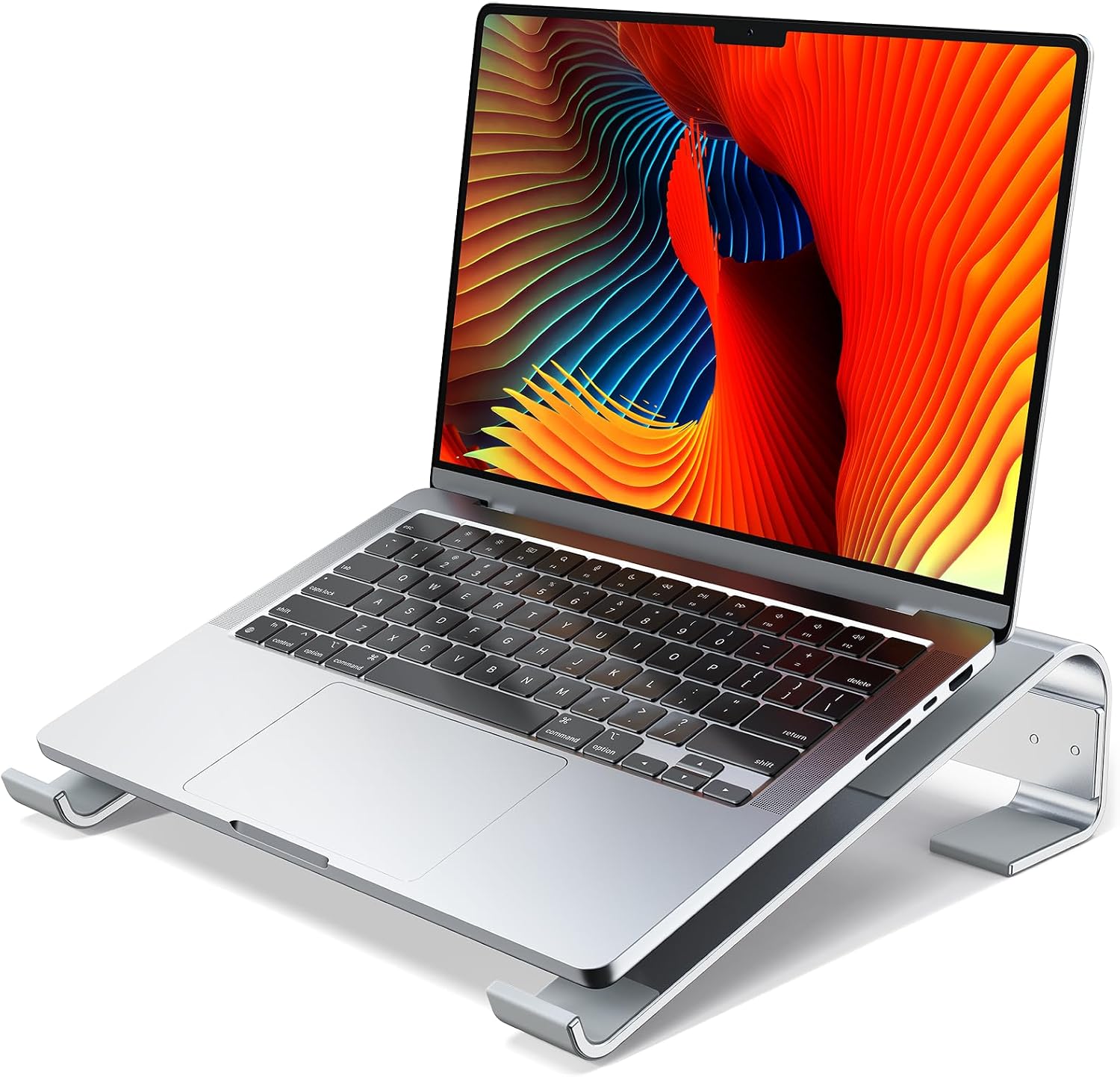
Using a laptop stand is an excellent decision for anyone interested in improving their workspace ergonomics. With the right adjustments, you can significantly enhance your posture and reduce strain while using your laptop. In this guide, we will explore how to properly adjust your laptop stand to maximize comfort and efficiency during your work sessions.
Understanding Ergonomics
Ergonomics focuses on creating a workspace that promotes health and efficiency. It’s essential to understand how your body interacts with your laptop’s positioning. Poor posture can lead to discomfort, fatigue, and long-term health issues. By adjusting your laptop stand, you’re taking a proactive step toward a healthier work routine.
The goal of ergonomics is to ensure your workstation suits your needs. An ergonomic setup can lead to improved comfort and productivity. By utilizing a laptop stand, you can align your screen with your eye level, reducing the strain on your neck and shoulders, which is often caused by bending forward to see your screen.
Choosing the Right Height
The first step in adjusting your laptop stand is to find the right height. Ideally, your laptop screen should be at eye level. This prevents you from tilting your head down or up, which can cause neck strain. When adjusting, consider both your chair height and desk level to achieve a comfortable setup.
To check if the height is correct, sit back in your chair and look straight ahead. Your eyes should naturally align with the top of the screen. If you find yourself tilting your head, try raising or lowering the stand until it feels comfortable. It may take a few adjustments to find the optimal position.
Angle Adjustment for Comfort
Another important aspect is the angle of your laptop. Different stands offer varying angles, allowing you to customize your laptop’s position further. A stand with adjustable angles can help you find the perfect tilt that promotes a comfortable viewing position.
Generally, an angle of 8° or 13° is effective. Choose 8° for a more relaxed position and 13° for a more upright posture. Experiment with these angles to see what feels best for you. Adjusting the angle can reduce glare and improve your typing posture, making it easier to work without strain.
Keyboard and Mouse Positioning
When using a laptop stand, it’s essential to consider where your keyboard and mouse are positioned. When the laptop is elevated, your arms should remain at a comfortable, 90-degree angle. If your keyboard is still attached to your laptop, consider using a separate keyboard and mouse to achieve the optimal height.
Place your keyboard and mouse at the same level as your elbows, keeping your wrists straight. This positioning will prevent strain and discomfort in your forearms and wrists. It’s essential to keep these devices close enough to avoid reaching, which can lead to fatigue over time.
Maintaining a Straight Posture
Besides adjusting your laptop stand, maintaining a straight posture while sitting is important. Sit all the way back in your chair with your feet flat on the floor and your knees at a 90-degree angle. Your back should be straight, and your shoulders relaxed.
Being conscious of your posture while working is crucial. Your head should be aligned with your spine, and you should not be leaning forward. Adjust your chair and laptop stand accordingly to create a workstation that supports good posture throughout your workday.
Using an External Monitor
Benefits of Adding an External Monitor
- Improved workspace: More screen real estate for multitasking.
- Better ergonomics: Positioning the monitor at eye level can enhance comfort.
- Enhanced productivity: Easier navigation between applications and documents.
Incorporating an external monitor can significantly enhance your ergonomic setup. By positioning this monitor at eye level, you can reduce strain and create a more spacious working environment. An external monitor allows you to work more efficiently by providing additional screen space to manage multiple tasks seamlessly.
When using an external monitor, ensure the laptop is positioned at a height that allows you to easily transition your gaze between screens. This will further enhance your posture and reduce the risk of discomfort during long hours of work.
Regular Breaks and Stretching
Even with the best ergonomic setup, it’s vital to take regular breaks. Prolonged periods of sitting can lead to stiffness and discomfort, no matter how well you’ve adjusted your laptop stand. Set a timer to remind yourself to stand up and move around every hour.
Incorporating stretching exercises into your routine can also help alleviate tension. Simple neck rolls, shoulder shrugs, and wrist stretches can make a significant difference. These small practices can help keep your muscles relaxed and your body feeling good throughout the day.
Where to start
To begin adjusting your laptop stand, assess your current workstation. Take note of your chair height, desk level, and existing posture. From there, make small adjustments to your laptop stand to find the right height and angle that works for you.
Consider your overall workspace setup, including keyboard and mouse positioning. By taking the time to adjust your laptop stand and maintaining a healthy posture, you can create an ergonomic workspace that promotes comfort and efficiency, leading to a more productive work experience.
From our shelves
- Ergonomic Zinc Alloy Laptop Stand,Portable Keyboard Riser with 2 Adjustable Angles (8°&13°)
- MOKURU Laptop Stand for Desk, Aluminum Laptop Riser, Ergonomic Computer Stand Compatible with for MacBook
- Triyards Portable Laptop Riseru2013Self-Adhesive Aluminum Foldable Laptop Stand
Browse the Aluminum and Alloy Stands range, or see everything in stock. Questions about what suits your setup? Talk to us or read the FAQ.